# How to Connect Your Credit Cards to ChatGPT or Claude
> Connect your CardStack wallet to the ChatGPT app or Claude connector to check unused credit card benefits, points balances, and offers in a conversation.
- Published: 2026-08-28
- Updated: 2026-11-11
- Author: CardStack
Canonical page: https://cardstack.money/articles/guides/how-to-connect-credit-cards-to-chatgpt-claude
Markdown mirror for AI agents and LLMs. Full index: https://cardstack.money/llms.txt
---
CardStack connects your credit card wallet to ChatGPT and Claude so you can ask about your tracked points balances, unused statement credits, and card-linked offers. Personal wallet access requires an active CardStack+ subscription or trial.
If you’re new to CardStack, [sign up and add your cards](/start/cards) first. If your wallet is ready, open [CardStack in ChatGPT](https://chatgpt.com/plugins/plugin_asdk_app_6aecbab359f88191870ebd7e4fb1b0a8) or [the CardStack connector in Claude](https://claude.ai/directory/cardstack), follow the prompts to connect, and sign in to the same CardStack account. Try asking, “Which statement credits on my cards expire this month?”
A bank connection is optional. Link a supported financial account through Plaid if you also want to ask about spending. You choose separately whether to share individual transactions with your assistant.
**On this page**
- [What Your AI Can Do Once Your Cards Are Connected](#what-your-ai-can-do-once-your-cards-are-connected)
- [How the Connection Works](#how-the-connection-works)
- [What Your AI Can Access](#what-your-ai-can-access)
- [Step 1: Create a CardStack Account and Start CardStack+](#step-1-create-a-cardstack-account-and-start-cardstack)
- [Step 2: Connect Your Financial Accounts](#step-2-connect-your-financial-accounts)
- [Step 3: Make Sure Your Wallet Is Up to Date](#step-3-make-sure-your-wallet-is-up-to-date)
- [Step 4: Connect Your Wallet to Your AI Assistant](#step-4-connect-your-wallet-to-your-ai-assistant) · [ChatGPT app](#how-to-connect-your-credit-cards-to-chatgpt) · [Claude connector](#how-to-connect-your-credit-cards-to-claude)
- [What Your AI Cannot Do](#what-your-ai-cannot-do)
- [Safety and Privacy](#safety-and-privacy)
- [How to Disconnect Your Credit Cards](#how-to-disconnect-your-credit-cards)
- [Troubleshooting](#troubleshooting)
- [Frequently Asked Questions](#frequently-asked-questions)
## What Your AI Can Do Once Your Cards Are Connected
Start with a question where the cards in your wallet change the answer. “Which of my cards earns the most on groceries?” compares the cards you carry. “Which Amex Platinum credits can I still use this month?” checks the usage you track in CardStack.
For examples with a connected wallet, see [how to find unused credit card benefits in ChatGPT](/articles/guides/how-to-use-chatgpt-to-find-unused-credit-card-benefits) or [how to check your points and miles in ChatGPT and Claude](/articles/guides/how-to-use-chatgpt-and-claude-to-check-your-points-and-miles).
## How the Connection Works
[CardStack Wallet](/app/features/mcp) acts as the connection between your financial data and your AI assistant.
When you authorize the connection, you give your assistant read-only access to the wallet you already track in CardStack.
Your assistant can then request the information it needs to answer your questions.
For example, if you ask:
> "Which of my credit card benefits am I about to lose?"
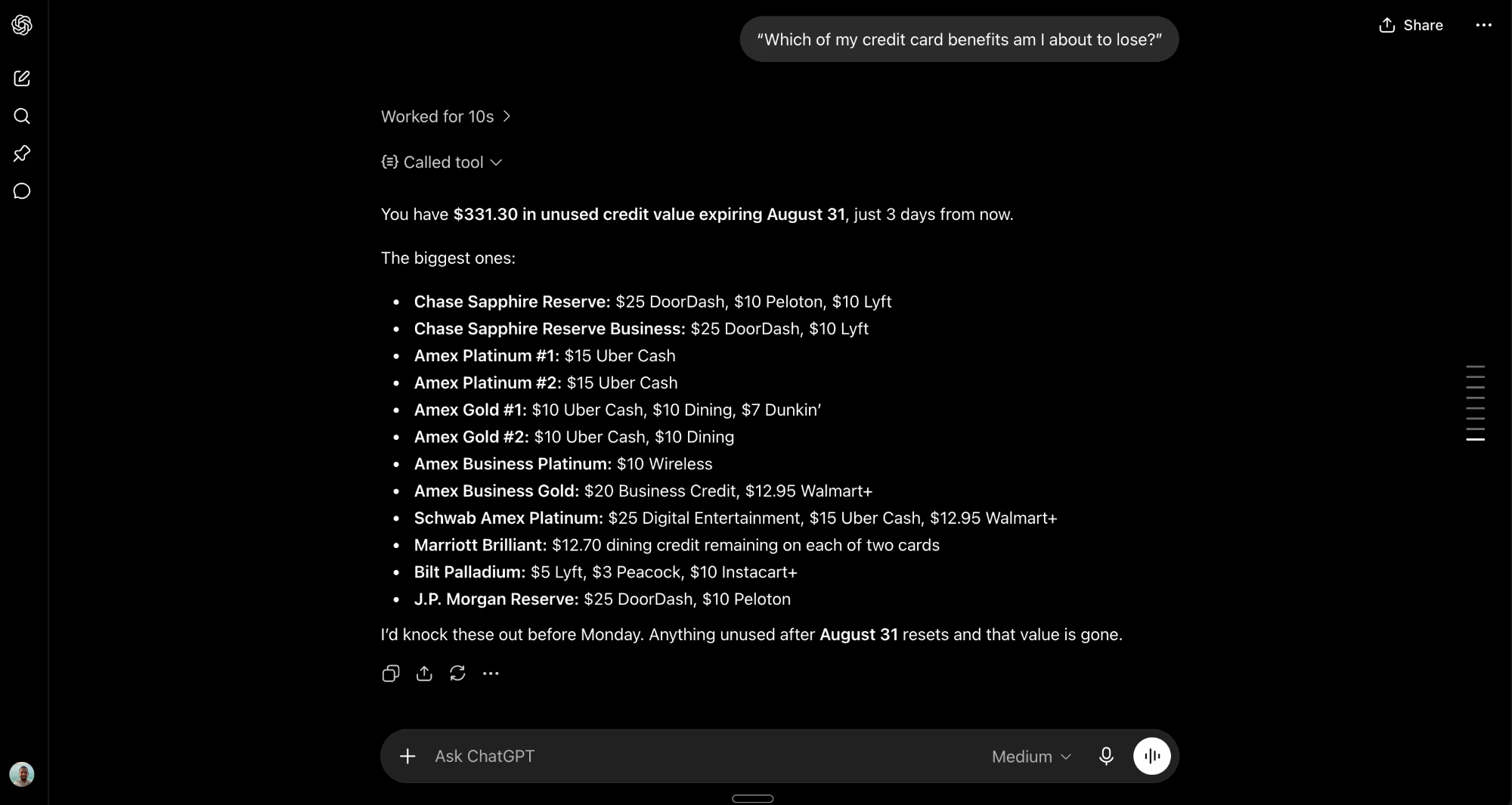
your assistant can check the cards in your wallet, review the benefits tied to those cards, and identify credits that are still unused.
If you ask:
> "Where did I use the wrong card last month?"
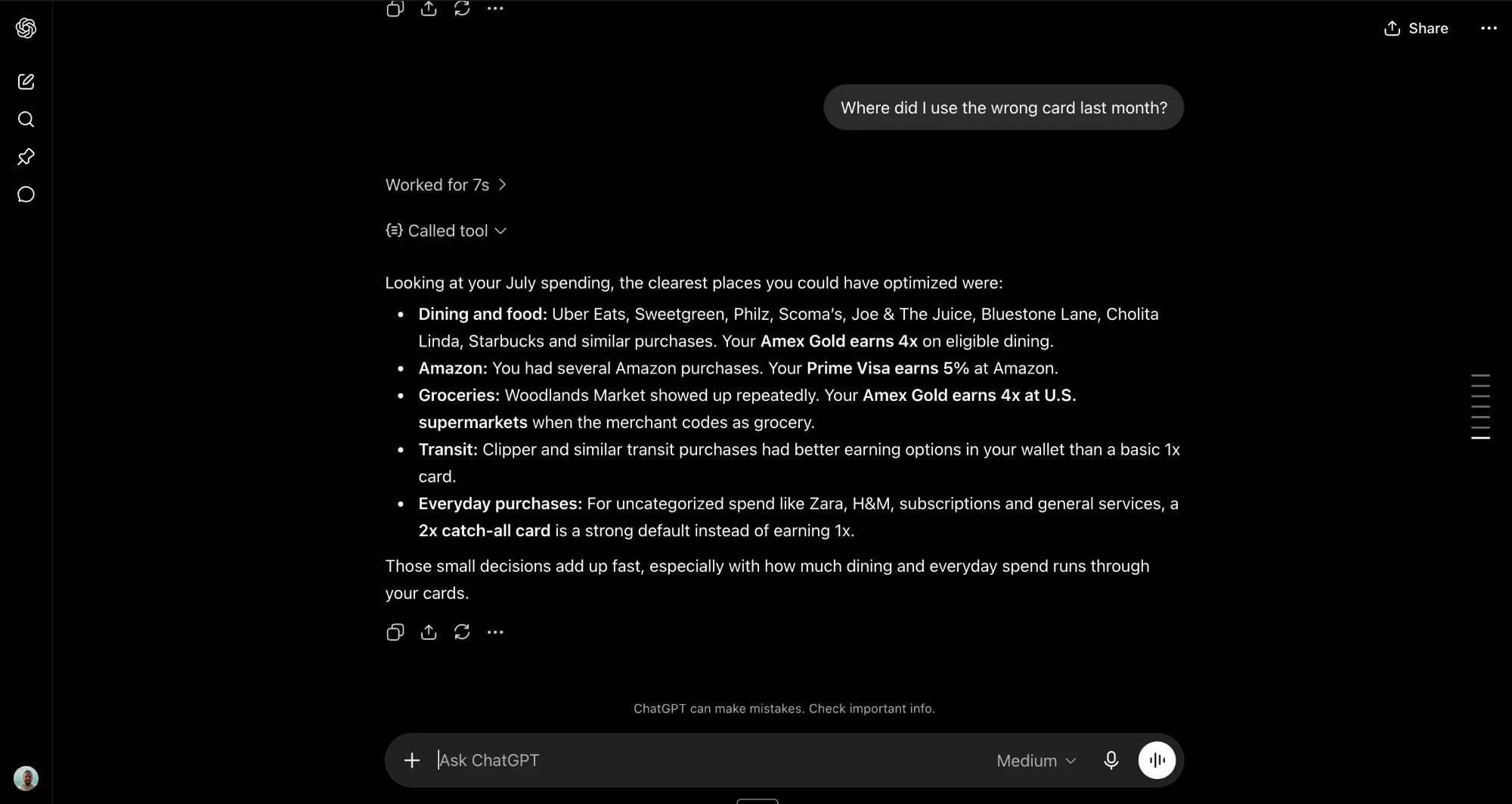
it can review your transactions and compare them with the earning rates of the other cards in your wallet.
The connection is read-only.
Your assistant can use the information to answer questions, but it cannot move money, make purchases, pay bills, or change your CardStack account.
## What Your AI Can Access
Depending on the information available in your CardStack account, your assistant can work with:
- The credit cards in your wallet
- Annual fees
- Statement credits
- Used and unused benefits
- Expiring benefits
- Point balances
- Card offers
- Spending by category
- Individual transactions, if you grant that permission
- Potential missing statement credits
- Purchases where another card may have earned more rewards
- Annual fee recovery
## Step 1: Create a CardStack Account and Start CardStack+
If you don’t have a wallet yet, [start the CardStack signup survey](/start/cards) and add the credit cards you use. If you already use CardStack, open your existing wallet and check that your cards are there.
Wallet access in ChatGPT and Claude requires an active [CardStack+ subscription](/subscribe) or trial on that same account.
## Step 2: Connect Your Financial Accounts
This step is optional. To ask about spending or a posted statement credit, connect the financial accounts associated with those cards. For questions about tracked balances and unused credits, you can skip to step 3.
CardStack uses Plaid to connect supported accounts and import transaction information.
Without transaction data, an assistant may know that one of your cards includes a statement credit, but it cannot determine from your spending whether you already used it.
With transactions connected, it can help answer questions such as:
- Did I use this credit?
- Did the credit actually post?
- Did I earn the expected rewards?
- Should I have used a different card?
- How much did I spend in this category?
## Step 3: Make Sure Your Wallet Is Up to Date
Before connecting your AI assistant, check that:
1. Your CardStack account is active.
2. Your CardStack+ free trial or subscription is active.
3. Your current credit cards are in CardStack.
4. If you want spending analysis, the relevant financial accounts are connected and transactions are syncing.
The assistant can only work with the information available in your wallet.
If a card is missing from CardStack, the assistant cannot include it when recommending which card to use.
If an account is not connected, transaction-based questions may be incomplete.
## Step 4: Connect Your Wallet to Your AI Assistant
### CardStack’s Claude connector for credit card rewards and benefits
1. **Open the listing.** Visit [CardStack: Credit Card Tracker in Claude](https://claude.ai/directory/cardstack) and choose **Connect** or **Install**, whichever appears.
2. **Sign in to CardStack.** Use the account containing the wallet you want Claude to use. Your CardStack+ free trial or subscription must be active.
3. **Review the permissions.** Approve wallet access. Detailed transaction access is optional. You can leave it off and still ask about cards, credits, points, offers, and aggregate spending.
4. **Use CardStack in a conversation.** Choose **+ → Connectors** in your Claude chat if you need to enable CardStack. Ask, “Use CardStack to tell me which of my credit card benefits expire soon.”
For help, see [How do I connect CardStack to Claude?](/help/getting-started/connect-claude). If you prefer manual setup, add a custom connector with `https://mcp.cardstack.money/mcp`. The separate free public catalog uses `https://mcp-public.cardstack.money/mcp` and does not include your personal wallet.
### CardStack’s ChatGPT app for credit card rewards and benefits
1. **Connect the app.** Open [CardStack in ChatGPT](https://chatgpt.com/plugins/plugin_asdk_app_6aecbab359f88191870ebd7e4fb1b0a8) and choose **Connect**. If you see **Install plugin** first, select it, then **Connect**.
2. **Sign in to CardStack.** Use the account containing your wallet and an active CardStack+ subscription or trial.
3. **Review access.** Approve wallet access. You can leave detailed transaction access off.
4. **Ask about your wallet.** In a ChatGPT conversation, type **@** and select CardStack, or select it from the **+** menu. Ask, “Which of my statement credits expire soon?”
### Connecting Your Wallet to Other AI Assistants
[CardStack Wallet](/app/features/mcp) can also work with other software that supports remote MCP connections.
The setup varies by product, but the process is generally:
1. Open the product's apps, connectors, integrations, or MCP settings.
2. Choose the option to add a remote MCP server.
3. Enter:
`https://mcp.cardstack.money/mcp`
4. Complete the CardStack sign-in process.
5. Approve the connection.
6. Ask the assistant to use CardStack when answering your credit card questions.
If an assistant does not support remote MCP connections, you will not be able to add the wallet directly.
## What Your AI Cannot Do
Connecting your wallet does not give an assistant control over your financial accounts.
CardStack Wallet is read-only.
Your assistant cannot use it to:
- Move money
- Make a purchase
- Pay your credit card bill
- Apply for a credit card
- Edit transactions
- Add or remove cards
- Change your CardStack account
- Modify your financial accounts
It can read the information made available through CardStack and use it to answer your questions.
Your assistant needs to know that a $50 credit is about to expire. It does not need permission to spend the $50.
## Safety and Privacy
Financial data deserves more scrutiny than a weather app or calendar integration.
### Your bank password is not given to ChatGPT or Claude
Your supported financial accounts are connected through Plaid.
Your AI assistant does not need your bank username or password to use CardStack Wallet.
### The connection is read-only
CardStack Wallet only exposes read-only tools.
Your assistant can retrieve information needed to answer a question. It cannot change your financial accounts or CardStack data.
### You choose whether to connect it
The connection requires authentication to your CardStack account.
You can disconnect it later if you no longer want an assistant to have access to your wallet.
### Your AI provider has its own privacy policies
When you ask ChatGPT, Claude, or another service to use connected information, some of that information may be processed by that service to answer your request.
Review the privacy settings and policies of the assistant you choose to use, especially before connecting financial information.
## How to Disconnect Your Credit Cards
You can remove the connection at any time.
In ChatGPT, open **Settings → Plugins** and select CardStack to manage the connection. In Claude, open **Customize → Connectors** and select CardStack. Choose the option to disconnect your account.
Removing the connector stops that assistant from using CardStack Wallet through that connection.
## Troubleshooting
### Claude Cannot See My Cards
First, confirm that CardStack is enabled in the conversation.
Then try:
> "Use CardStack to list the credit cards in my wallet."
If no cards appear, confirm that you authenticated with the correct CardStack account.
### ChatGPT Is Giving Me a Generic Answer
Ask it explicitly to use CardStack.
Instead of:
> "Which card should I use for groceries?"
ask:
> "Use CardStack to check the cards in my wallet and tell me which one I should use for groceries."
### One of My Cards Is Missing
Open CardStack and make sure that card has been added to your wallet.
Your assistant cannot recommend or analyze a card that is not available through the connected account.
### My Transactions Are Missing
Check that the relevant financial account is connected to CardStack and that transactions are syncing properly.
If transactions appear in CardStack but the assistant cannot show individual purchases, check whether you granted detailed transaction access when connecting your wallet.
### My Points Look Wrong
Check that the relevant points program is being tracked correctly in CardStack.
If the underlying balance in CardStack is incorrect or unavailable, your assistant will not be able to produce an accurate total.
## Frequently Asked Questions
### How do I connect my credit cards to ChatGPT or Claude?
[Add the cards you want to track to a CardStack wallet](/start/cards), then connect the wallet from the [ChatGPT app listing](https://chatgpt.com/plugins/plugin_asdk_app_6aecbab359f88191870ebd7e4fb1b0a8) or [Claude connector listing](https://claude.ai/directory/cardstack). Choose the CardStack account that holds your cards and approve wallet access.
### Is there a ChatGPT plugin for credit card rewards?
Yes. In ChatGPT, look for the [CardStack app](https://chatgpt.com/plugins/plugin_asdk_app_6aecbab359f88191870ebd7e4fb1b0a8). Connect your wallet, then ask, “Use CardStack to show me the unused statement credits on my cards and when they reset.” The answer uses the benefits and usage recorded in your wallet.
### How do I connect Amex to ChatGPT?
Add your Amex cards to CardStack and connect the CardStack app in ChatGPT. For questions about a particular purchase, connect the supported Amex account through Plaid in CardStack and allow transaction access when you connect ChatGPT.
### How do I connect Chase to ChatGPT or Claude?
Add your Chase cards to your CardStack wallet. In ChatGPT or Claude, connect that same wallet and ask which of your Chase cards earns the most on an upcoming purchase. For spending analysis, link the supported Chase account through Plaid in CardStack.
### Can ChatGPT or Claude see my credit card transactions?
You can grant access to individual purchases from supported financial accounts linked through Plaid. Leave detailed transaction access off if you only want to share wallet information such as cards, tracked credits, and points balances.
### Can I connect Plaid to ChatGPT?
In this setup, you link supported accounts through Plaid inside CardStack. The CardStack app then gives ChatGPT access to the wallet and spending data you authorize.
### Do I need a subscription to connect my credit cards to ChatGPT?
Personal wallet access in ChatGPT and Claude requires an active CardStack+ subscription or trial.
### Do I need to know what MCP is?
No.
[MCP](/app/features/mcp) is simply the connection that lets a compatible AI assistant request information from CardStack.
You do not need to understand the technical details to use it. Follow the setup instructions, connect your CardStack account, and then ask questions about your cards normally.
## Related Reading
- [Best Credit Card Rewards Apps (2026)](/articles/guides/credit-card-rewards-optimizer-apps-2026) — how CardStack compares to MaxRewards, Kudos, and AwardWallet
- [How to Track Your Credit Card Credits](/articles/guides/how-to-track-credit-card-credits-2026) — the manual system, and how to automate it
- [Effective Annual Fee, Explained](/articles/guides/effective-annual-fee-explained) — what your cards actually cost after credits